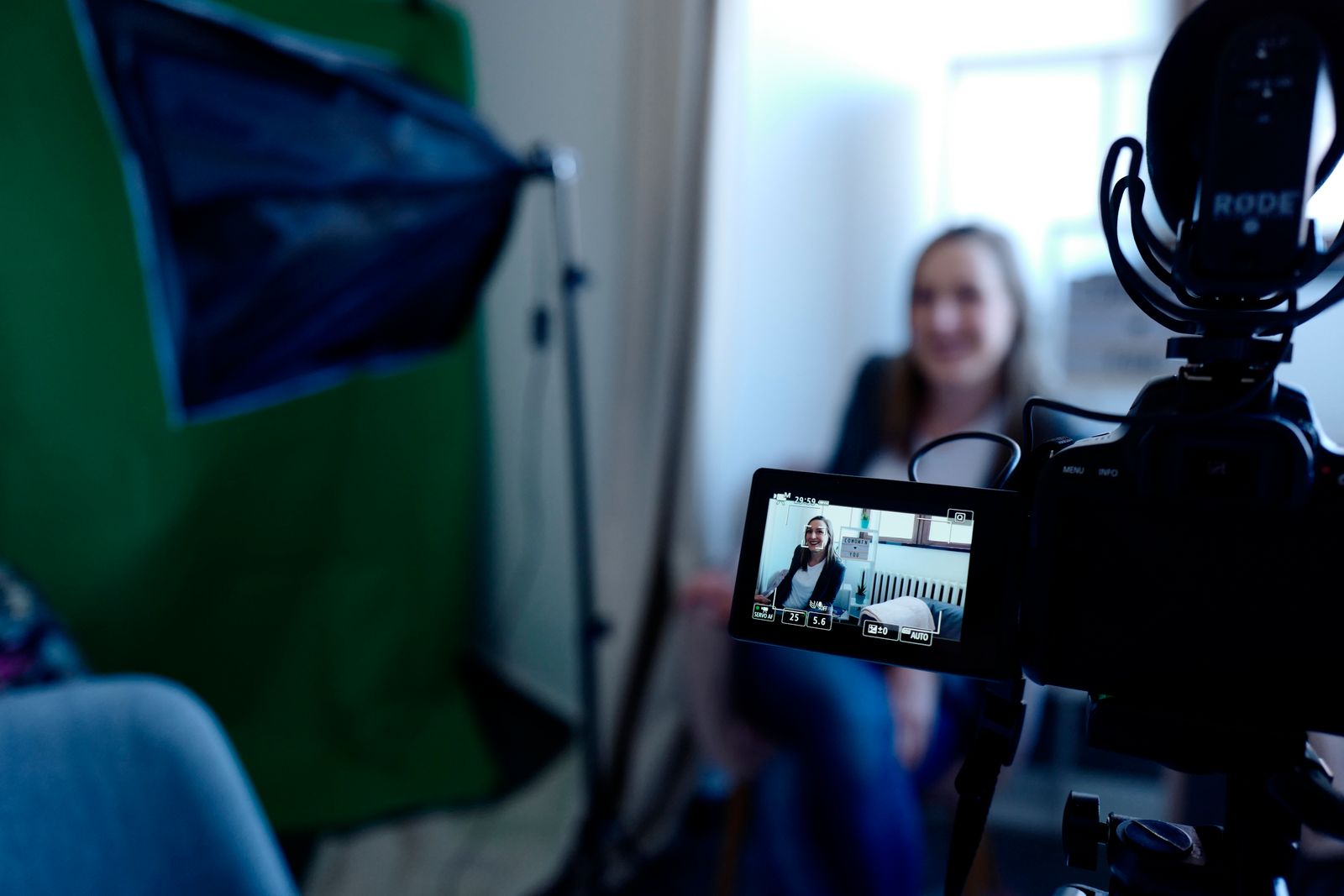
Most YouTubers do not run out of ideas. They run out of week.
Recording a video might take an hour. Sometimes less. What eats the rest of the schedule is everything around it: shaping a loose thought into a script that actually holds together, designing a thumbnail that makes sense at a glance, cutting pauses and mistakes out of the footage, adding captions, writing a title and description, and then cutting the same video down again for Shorts. Each of those jobs is small on its own. Stacked up, they turn one upload into a full production day, and then another.
That is the bottleneck AI tools are best at shrinking. Not by replacing the creator, and not by inventing a channel’s voice overnight, but by taking the repetitive middle work off the table so the creator can spend more time on the parts only a person can do: the opinion, the story, the on-camera presence, the judgment about what is worth saying at all.
This guide follows that work in production order. Think of it as a line, not a shopping list. You start with an idea, you end with a published video plus a few Shorts, and at each station you use a tool for one clear job. If a tool does not save you time at that station, it does not belong in your workflow yet, no matter how popular it is.
1. Ideas and Script: Turn a Rough Thought Into Something You Can Film
An idea is not a video. “I should talk about budgeting” is a topic, not a plan. A plan answers three questions before you press record: what is the viewer trying to solve, what will you show or say first, and where does the video end? Without those answers, filming wanders, and editing later becomes a rescue job.
This is where a general writing assistant earns its place. Tools like ChatGPT are useful here not because they write your script for you, but because they help you argue with your own idea. Paste in your rough topic and ask for ten angles, then throw out eight of them. Ask what a beginner would misunderstand about the topic, and build your opening around that misunderstanding. Ask for an outline, then rearrange it until the order feels like something you would actually say out loud.
One habit makes the difference. Give the tool context it cannot guess: who the video is for, how long you want it to be, and one thing you refuse to say. “A five-minute video for new freelancers who have never sent an invoice” will get you a far more usable outline than “write a video about freelancing.” And when the draft comes back, read it aloud. If a sentence sounds like something you would never say, cut it or rewrite it in your own words. Viewers notice borrowed phrasing faster than creators think, and a script that sounds like you is worth more than a script that sounds polished.
A short checklist helps at this stage:
- One clear promise in the first thirty seconds: what will the viewer be able to do, or understand, by the end?
- Three to five main points, in an order a stranger could follow without rewinding.
- One example, story, or screen demonstration per point, so the video is not just talking.
- An ending that tells the viewer what to do next, whether that is trying a step, watching a related video, or leaving a comment.
You do not need a perfect script. You need a script you can film without stopping every two minutes to figure out what comes next. That alone can cut your recording time in half.
2. Thumbnail and Titles: Make the Promise Visible Before Anyone Presses Play
Nobody watches a video they never click. That sounds obvious, yet many creators spend six hours editing and six minutes on the thumbnail and title. Flip that balance a little, and the same video often does noticeably better, because the packaging finally matches the work inside it.
Start with the title, and write it before you design anything. A good title usually does one of three things: it names a specific result, it names a specific problem, or it creates a gap the viewer wants closed. “How I plan my week” is vague. “How I plan a week of videos in one Sunday afternoon” is specific enough to picture. Keep a list of five or six title options, then pick the one that is still honest after you have finished the video. If the video does not deliver what the title promises, viewers leave early, and that hurts more than a slightly less exciting title ever would.
For the thumbnail itself, a design tool like Canva covers most creators’ needs without a steep learning curve. Its YouTube thumbnail templates are already sized correctly, which removes one common beginner mistake, and you can build a repeatable style: the same fonts, the same two or three colours, a similar layout each time. That consistency matters. Returning viewers start to recognise your videos in a crowded feed before they even read the words.
Keep the design simple, because thumbnails are mostly seen tiny, on a phone, next to a dozen others. Three or four words at most, one clear face or object, and enough contrast that the text does not disappear into the background. Zoom out to about a tenth of the size and squint. If you cannot tell what the thumbnail is about, neither can a scroller. Try two versions when you have time, and keep notes on which style gets clicked more often. Over a few months, that small record teaches you more about your audience than any generic thumbnail advice will.
One more caution: an AI image generator can help with backgrounds or illustrations, but check the result closely before you publish it. Extra fingers, garbled text, and odd details slip through easily, and a thumbnail with a visible mistake undermines trust before the video even starts.
3. Editing and Captions: Cut the Footage, Then Make It Watchable Without Sound
Editing is where most videos stall. The footage sits on a hard drive for days because opening the timeline feels like starting a second job. The fix is usually not a better editor. It is a smaller first pass: cut the obvious mistakes first, tighten the whole thing second, and polish last.
Text-based editing changed this job for a lot of creators. In Descript, for example, your recording is transcribed, and you edit the video by editing the transcript. Delete a rambling sentence from the text, and the matching footage goes with it. That sounds like a small difference, but in practice it turns a two-hour timeline slog into something closer to proofreading. You can also remove filler words and long pauses in a pass, then listen through once to make sure the cuts still sound natural. Read the transcript too: sentences that look fine on screen sometimes sound clumsy spoken aloud, and this is the stage where you catch them.
Captions deserve the same attention as the edit itself. Plenty of people watch with the sound off, on a commute or late at night, and a video without readable captions loses them in the first minute. Both Descript and CapCut can generate captions automatically from your audio, which saves the tedious job of typing them out by hand. But automatic does not mean accurate. Names, brand terms, and numbers are exactly where these tools stumble, so run through the captions once and fix the mistakes. Split any caption that runs to three lines, and make sure the text is not sitting on top of something important in the frame.
Finally, watch the finished video once from start to finish, ideally on your phone, before you upload it. Phone viewing catches problems a desktop edit hides: text that is too small, audio that dips under background music, a cut that feels abrupt on a small screen. Fix those, export, and move on. A video that is good and published beats a video that is perfect and still sitting in your editor on Friday night.
4. Repurposing Into Shorts: Let One Video Do a Second Job
Here is the part most small channels skip, and it is a shame, because it is also the part with the best return on effort. You have already done the hard work: researched, scripted, filmed, and edited a full video. Cutting two or three Shorts from it takes a fraction of that effort, and each Short can bring new viewers back to the longer video.
The key is choosing moments that stand alone. A Short needs its own beginning, middle, and end in under a minute. A random thirty seconds from the middle of your video rarely works, because the viewer arrives with no context and leaves confused. Look instead for moments that already have a shape: a common mistake and its fix, a before-and-after result, a short story with a clear payoff, or one tip that is useful even without the rest of the video.
A clipping tool like OpusClip can scan a long video and suggest candidate clips, then reframe them vertically and add animated captions. Treat those suggestions as a first draft, not a finished product. Watch each candidate all the way through. Does the hook make sense in the first three seconds? Does the clip end cleanly, or does it trail off mid-sentence? Does it still say what you meant, or has the cut changed the meaning? If a clip fails any of those checks, either fix the cut yourself or drop the clip. One strong Short is worth more than five confusing ones.
When a clip is ready, add a short caption that tells a new viewer what they are about to get, and point back to the full video where it makes sense. Do not simply re-upload the same Short five times with different music and hope for a different result. Space your Shorts out, vary which moments you use, and notice which kinds of clips actually send people to the long video. Over time, that pattern tells you what your audience wants more of, which feeds straight back into stage one: your next idea.
Put together, the line looks like this: outline with a writing assistant, film from that outline, design a thumbnail and title that match the finished video, edit by transcript and caption carefully, then cut a few standalone Shorts from the best moments. No single tool does all of it well. The workflow does.
Frequently Asked Questions
Do I need paid AI tools to start as a YouTuber?
No. Most of the tools mentioned here offer a free tier or a free trial, and for a new channel that is usually enough to learn the workflow. Start free, find the stage where you actually lose the most time, and only pay for the tool that fixes that stage. Check the official site before you subscribe, since plans and limits change, and a feature that is free this month may not be free next month.
Will using AI tools make my videos sound the same as everyone else’s?
Only if you publish the first draft unchanged. AI output tends toward the average: safe wording, familiar structures, no strong opinions. Your job is to push against that. Add your own examples, cut sentences you would never say, and keep any opinion that might divide viewers a little. The tool supplies the scaffolding. The voice has to be yours, or viewers have no reason to pick your channel over another one covering the same topic.
How many Shorts should I cut from one long video?
Two or three strong ones is a sensible starting point for most creators. If your video is long and packed with distinct tips, you might get more, but quality drops fast once you start forcing clips out of moments that do not stand alone. It is better to publish two Shorts you are proud of than six you had to stretch. You can always return to the same video later with fresh eyes and find another moment worth cutting.
What should I check before publishing an AI-assisted video?
Four things, every time. First, facts: any claim, number, or name the tool supplied needs a quick check against a reliable source. Second, captions: read them through for misheard words and bad timing. Third, the thumbnail: look at it small, on a phone, and confirm the text is readable. Fourth, the title and description: do they honestly describe what the video delivers? If all four pass, you have done the work that matters, and the video is ready to go out.
Leave a Reply